

To connect Property Finder to Bitrix24, you’ll need a paid Bitrix24 cloud plan, approved portal access and a clear map for lead fields. Then you can route enquiries to the right agent instead of copying them by hand.
Follow these steps in order. Keep lead capture separate from listing feeds: they’re related, but they may need different settings or connectors.
What you need before you start
Most delays on a portal connection come from missing access, not from the technical work. Collect these items first, so the setup can run in one sitting instead of stopping halfway for a password or an approval.
| Item | Who usually provides it | Why it matters |
|---|---|---|
| Bitrix24 administrator access | Your Bitrix24 account owner | Only an administrator can install apps, create webhooks and change CRM fields. |
| Property Finder account access and approved connection details | The person who manages your Property Finder account | The portal decides which integration routes it supports for your account. |
| A list of agents and teams | Sales manager | Assignment rules need to know who handles off-plan, secondary sales and leasing. |
| Your current lead fields | Sales manager or admin | You map portal data to these fields, so agree on them before the first test. |
| A test listing and a test contact | Listing admin | You need safe data to test with before real buyers enter the flow. |
Also decide one owner for the connection on your side. When a lead goes missing at 10pm on a Friday, your team needs to know who checks it. In our experience the best owner is a sales manager or operations lead, not an agent, because they see the whole pipeline.
If you are still choosing your CRM, read our guide to the best CRM for real estate in Dubai before you connect any portal. It is easier to connect Property Finder once to the right system than to rebuild the connection later.
Step 1: Check your Bitrix24 account, API access and permissions
Start with the Bitrix24 plan and setup. For the webhook-based setup described here, use a paid Standard plan or higher, and confirm that your account has the CRM automation and REST API access the connection needs. Don’t build around a free account and assume it can run the same workflow. Plan features and licence prices change, so check the current list on the official Bitrix24 UAE pricing page (we checked it in October 2026).
Next, check who can install apps and manage CRM settings. Ask your Bitrix24 administrator to confirm you have the right permissions, or have them make the changes with you. Keep access limited to staff who need it.
Property Finder access is separate. Ask your portal account administrator to confirm the approved integration method and arrange the API credentials or connection details. An app-based connector may be another route, but confirm that it is approved and supports the data you need.
Before you choose a connector, write down what you need it to do. Do you only need enquiries in Bitrix24, or should listing data move between the systems too? Our Bitrix24 Real Estate CRM page shows how we set up the CRM fields and pipelines before any portal connection is added.
At Digitalz, we set up Bitrix24 for UAE brokerages, with pipelines for off-plan, secondary sales and leasing. Our Real Estate CRM starts from a proven setup, not a blank screen. Portal connections are separate services, so confirm their scope before work begins. For the budget side, see what Bitrix24 implementation costs in the UAE and which items add to it.
Milestone: You should have a paid plan, an account owner who can approve changes, and a clear list of the data you expect to sync.
Step 2: Install the Property Finder app or configure the approved connection
Choose one supported route: a third-party app or an approved API connection. Check the connector’s stated job before installing it. Some connectors focus on enquiries, while a listing feed may be a separate part of the setup.
For an app route, review the available connector’s permissions and the data it handles. Confirm that it supports your Bitrix24 plan and the lead or listing flow you need. Then have an administrator install and authorise it.
For any third-party connector, treat its listing as a starting point, not a substitute for checking its current scope with the app provider. Make sure your team knows which system owns each field and who can change the connection.
For an API route, ask the authorised integration provider for the endpoint and credential steps. A common Bitrix24 lead-creation method is crm.lead.add, described in the Bitrix24 REST API documentation. The connector sends a request when a buyer submits an enquiry, and Bitrix24 creates a lead from the fields in that request.
Store credentials in the approved connection settings. Don’t paste a webhook URL into a shared chat or a document that anyone can open. The Bitrix24 guide to incoming webhooks explains that the URL itself carries the access key, so treat it like a password. If a credential has been exposed, replace it and test the connection again.
Milestone: The app or approved connection is authorised, and you know whether it handles enquiries, listing data or both.
Step 3: Map listings, leads and contacts, then check synchronisation
Map the fields before you send live enquiries. A lead should carry enough context for an agent to act without asking the buyer to repeat basic details. Start with the contact name, phone number and email address, then add the source portal and listing reference.
In Bitrix24, create or confirm the matching CRM fields. Use a consistent format for phone numbers and listing references. Decide whether each enquiry becomes a lead or a deal, and make sure the destination matches the pipeline your team uses.
Property details need their own mapping if your connector syncs listings. Match fields such as listing reference, price, property type and status to the right Bitrix24 fields. Include the Trakheesi permit number where your listing feed uses it. Ask the person managing your portal account to confirm the required format.
Don’t assume a lead connection also updates listings. Enquiry capture usually sends data into Bitrix24. Listing synchronisation may use a separate connector or an XML feed, with its own schedule. Agree which system is the source of truth for each field, especially price and listing status.
Test one enquiry first. Check that the lead appears once, the portal source is correct and the listing reference opens the right property record. If your team also uses other UAE portals, plan their fields separately. Include other portal CRM connections in that planning.
Turn on duplicate checks for phone and email if your CRM configuration supports them. A buyer may enquire about the same property on more than one portal. A duplicate rule helps your team spot that history instead of creating several disconnected records.
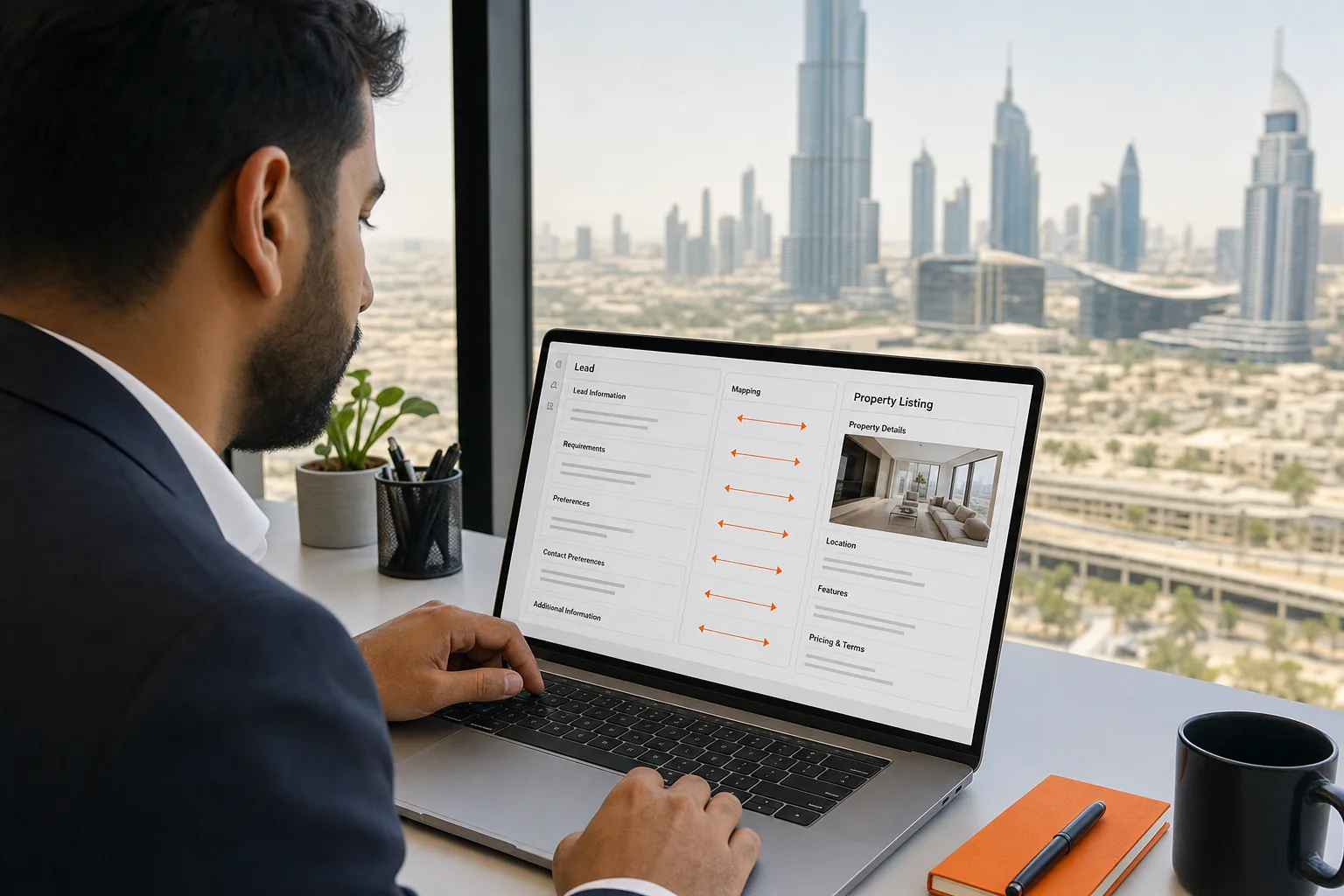
Milestone: A test record has the right contact details, source and listing reference, and your team knows how listing updates will sync.
Step 4: Route new enquiries and automate agent follow-ups
Set the assignment rule before live leads arrive. You might assign by listing, area or property type, or use a round-robin queue. Choose one rule that matches how your managers already divide work, then test it with sample leads.
Next, use Bitrix24 automation to create a follow-up task for the assigned agent. Add a clear due time and notify the agent when a new enquiry lands. The manager should be able to see who owns the lead and whether the first action is still due.
Keep the first message short and useful. If your process includes WhatsApp, connect it as a separate service and confirm which templates or replies your team has approved. Digitalz provides WhatsApp CRM setup for UAE real estate teams as a separate service.
Build the next steps around the enquiry stage. For example, after the agent logs a call, create a task to share a suitable listing or arrange a viewing. If the lead has not been updated by the due time, alert the team lead. Avoid sending repeated automatic messages when an agent is already in touch.
Make the stages match the work: new enquiry, contacted, viewing planned and follow-up due. Keep the first pipeline simple. Off-plan, secondary and leasing teams may need different stages, but each one should have a named owner and a clear next action.
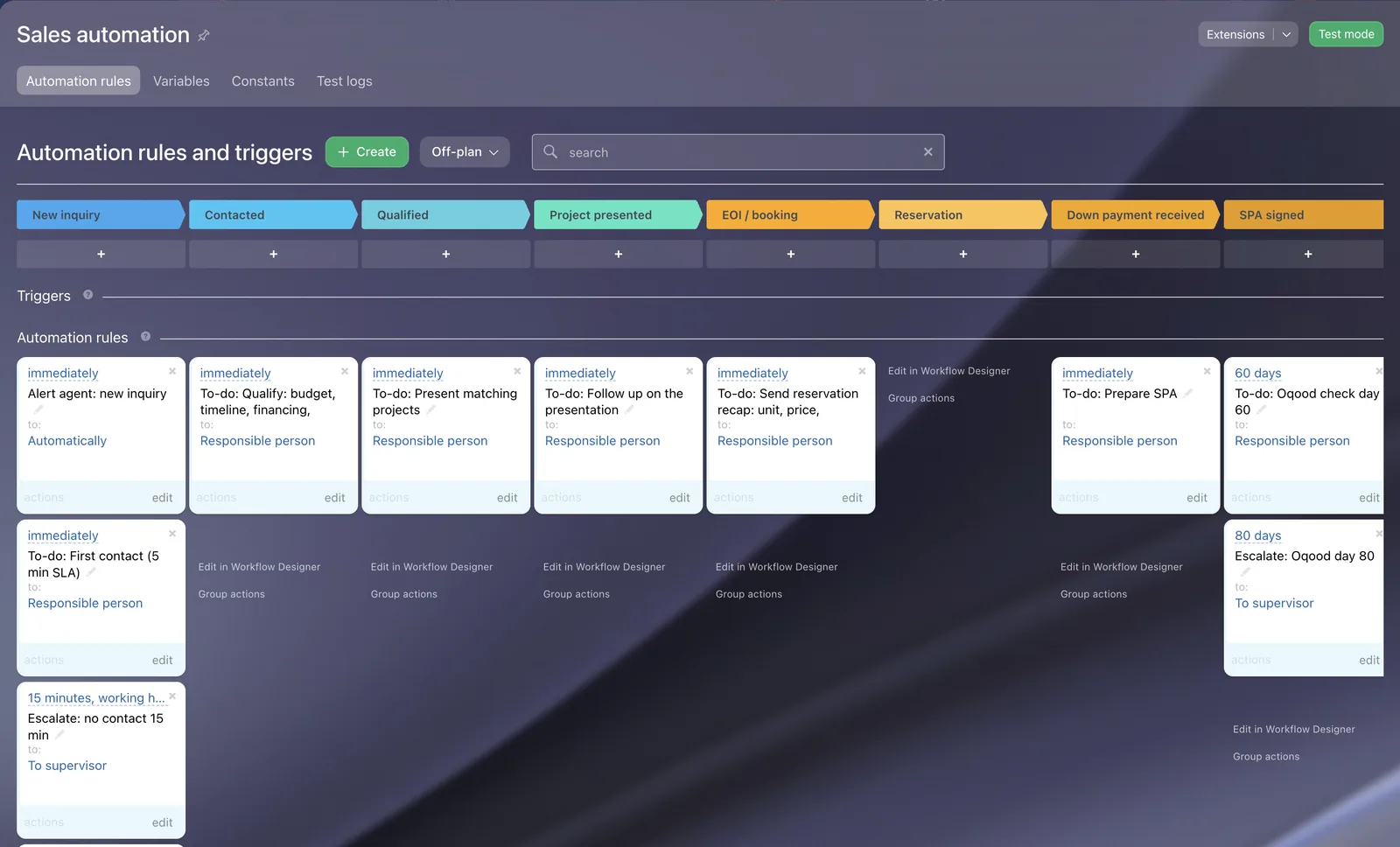
The screenshot above is from our Real Estate setup: a new enquiry alert, a first-contact task and an escalation to the team lead if nobody acts. Your timings may differ. Pick ones your team can keep during busy launch weeks and after Eid, when enquiries often pile up.
Milestone: A test enquiry reaches the right agent and creates a task with a clear next step.
Step 5: Test the connection, resolve errors and protect UAE client data
Test the whole path before launch. Submit a test enquiry through the approved route, then check the Bitrix24 record, assignment rule and follow-up task. If you’re testing a listing feed too, check a sample property update from the source system through to the portal.
If nothing arrives, check the connection authorisation and whether the endpoint is active. If fields are blank or in the wrong place, compare the incoming field names with your Bitrix24 map. If a duplicate appears, review the matching rules for phone and email before changing the live workflow.
Keep a short log of each test: what you sent, what Bitrix24 received and what the agent saw. This makes it easier to tell whether an issue sits with access, field mapping or assignment. Test again after any change.
Give access only to people who need it, and store credentials in the approved system. Set a process for replacing access details when staff roles change. Keep only the client data your team needs for the agreed purpose, and ask your UAE privacy lead to check the flow against your privacy notices and the UAE PDPL. The UAE government overview of data protection laws is a good starting point.
Digitalz helps UAE brokerages configure Bitrix24 around their sales process. We also focus on team adoption, because a well-mapped CRM still needs agents to use it.
Milestone: Your test lead reaches the correct agent, your test listing matches its source and you’ve reviewed who can access client records.
Common mistakes when connecting Property Finder
These are the problems we fix most often when a brokerage asks us to review an existing portal connection. None of them is hard to avoid if you plan for it.
No owner for unassigned leads
An enquiry arrives, the rule cannot match it to an agent, and it sits in the CRM with no responsible person. Always set a fallback owner, such as the team lead, so every lead has a name on it from the first minute.
Listing reference stored as free text
If the listing reference lands in a comment field, nobody can filter or report on it. Put it in its own field. Then managers can see which listings bring enquiries and which ones bring none.
One pipeline for every kind of deal
Off-plan, secondary and leasing work move at different speeds and need different documents, such as Form F for a secondary sale or Ejari for a tenancy. Mixing them in one pipeline makes the stages vague. Route each enquiry to the pipeline that matches the listing type.
Test leads left in live reports
Testing is good. Forgetting to remove the test records is not. Mark test enquiries clearly, then delete them or move them to a closed stage before managers start reading the dashboard.
Rotation that ignores leave and days off
A round-robin queue keeps sending leads to an agent who is on leave. Agree how agents are paused in the rotation, and who updates it, before the busy season starts.
Many of these issues come from the way the CRM was set up, not from the portal. If your team has stopped trusting the CRM, Why Dubai Real Estate Teams Stop Using Their CRM covers the habits behind that and how to reverse them.
After go-live: keep the connection healthy
A portal connection is not a one-time job. Settings change, staff change and listings change. A short routine keeps the flow reliable.
- Daily: the team lead checks for new leads without an owner or without a completed first task.
- Weekly: compare the number of enquiries shown in your Property Finder account with the number of new Property Finder leads in Bitrix24. A gap means something is not arriving.
- Monthly: review who has administrator access in both systems and remove anyone who has left or changed role.
- After any change: send one test enquiry again whenever you edit fields, rules or connection settings.
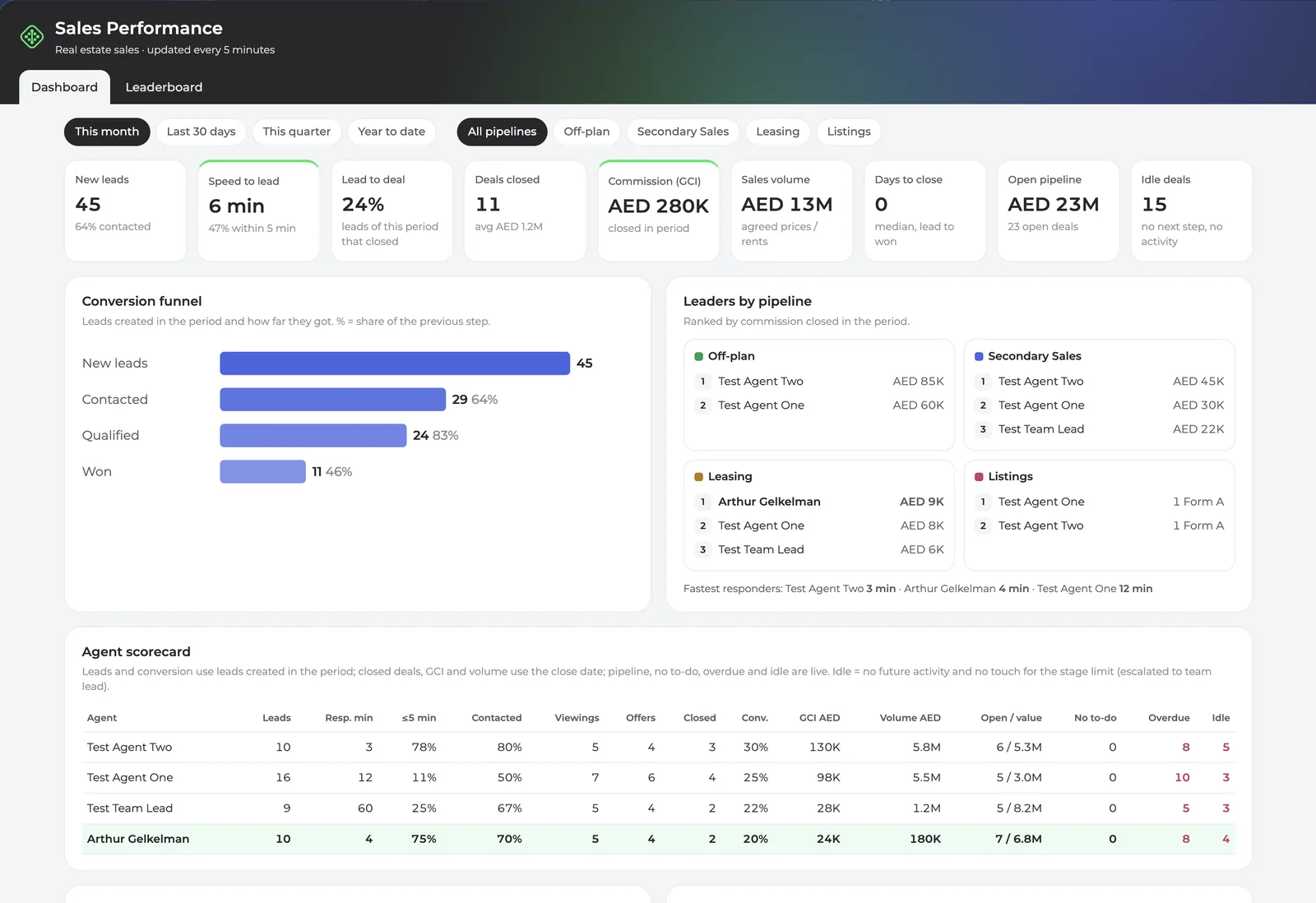
A simple dashboard helps here. When managers can see new leads, speed to lead and follow-ups per agent on one screen, a broken connection or a stuck rule shows up within a day instead of at the end of the month.
Frequently asked questions
Do I need a paid Bitrix24 plan to connect Property Finder?
Yes, plan for a paid Bitrix24 cloud plan that supports the CRM automation and API access your connection needs. The webhook setup described here is intended for Standard or higher. Check your current plan features before installation, as plan terms can change. Confirm the requirement with the connector provider too.
Does a Property Finder lead connection also sync listings?
No, don’t assume it does. Lead capture sends enquiry details into Bitrix24, while listing updates may use a separate connector or XML feed. Confirm which data moves in each direction and how often it syncs. Test a lead and a listing change as separate tasks before switching on the live workflow.
Which fields should a Property Finder lead send to Bitrix24?
Start with the contact’s name, phone number and email address. Add the portal source and listing reference so the agent can see where the enquiry came from and which property it concerns. Map each field to a matching CRM field, then test the record for missing or wrongly placed data.
Can Bitrix24 assign Property Finder enquiries to agents automatically?
Yes, if your Bitrix24 setup includes the needed automation rules. You can set a rule based on your team’s assignment method, then create a follow-up task for the assigned agent. Test the rule with sample enquiries first, especially if different teams handle off-plan, secondary sales or leasing.
How do I reduce duplicate Property Finder leads?
Set duplicate checks to compare phone numbers and email addresses, then test enquiries that use the same contact details. Buyers can enquire through more than one portal, so a duplicate rule helps agents see existing records. Decide whether the CRM should merge, flag or route a match for review.
Next steps
Start with a paid plan and a clear field map, then test one enquiry from portal to agent before opening the flow to the whole team. If you want a ready CRM starting point, review how to launch a Real Estate CRM in Dubai, then plan the Property Finder connection as a separate step after go-live. Our Real Estate CRM in 2 hours package gives you the CRM base, and the portal integration is added afterwards as a separate service. To budget the whole project, including portal and WhatsApp costs, see our guide to real estate CRM cost in Dubai. If you want to talk it through, message Digitalz on WhatsApp at +971 50 761 5409.